
How to Test a Proxy: Speed, IP Location and Stability
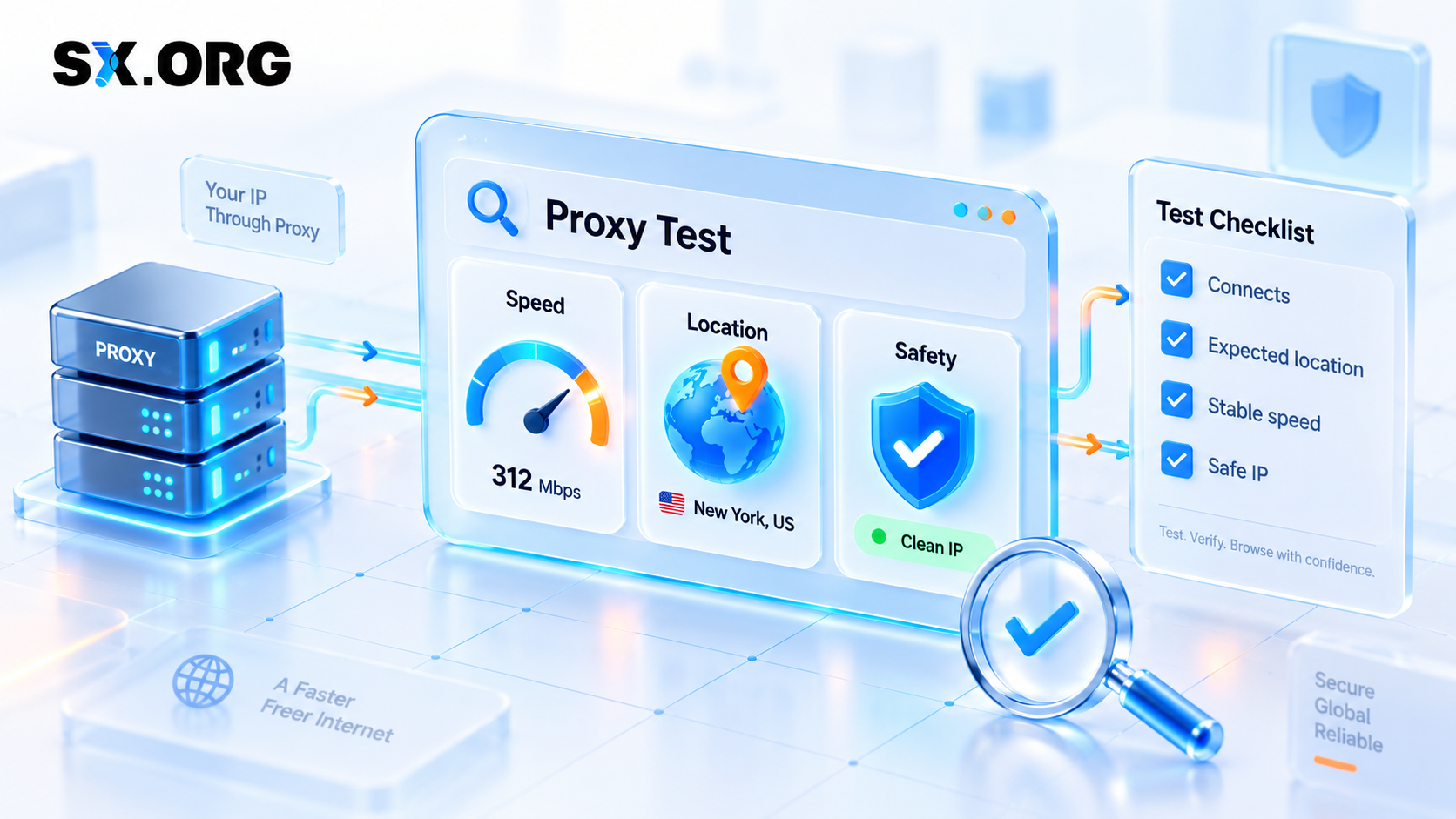
A proxy lets you connect to websites through a different IP address. Before using one for work, it is worth checking that it is fast enough, shows the right location and works reliably.
This guide explains how to test a proxy in simple terms. You do not need to be a developer or a proxy expert to use it.
Use proxies responsibly and only for legal, authorized activities that follow the rules of the websites and services you use.
What Should You Check?
A good proxy should do five things:
| Check | What it means | Why it matters |
|---|---|---|
| Connection | The proxy connects without errors | You can use it in your browser or tool |
| Speed | Pages and requests load quickly enough | Slow proxies waste time and may interrupt work |
| IP address | Websites see the proxy IP, not your real IP | Confirms that traffic goes through the proxy |
| Location | The proxy appears in the country or city you selected | Important for local SEO, market research, and localization checks |
| Stability | The connection remains reliable | Useful when you need to work for longer than one request |
For more detailed testing, also check DNS behavior and IP reputation. These help identify location mismatches and IPs that may perform poorly on some websites.
Step 1: Check That the Proxy Connects
The easiest test is to add the proxy to your browser, anti-detect browser, app or work tool and open an IP-information page.
If the page loads and shows a different IP address from your usual one, the proxy is connected.
A convenient option is i.pn. It displays the IP address seen by the website and can help you review location and network details, including country, city, timezone, ISP and ASN.
If the proxy does not work, check:
- Proxy host and port
- Login and password
- Whether your IP has been added to the whitelist, if you use IP authorization
- Whether you selected the correct protocol: HTTP(S) or SOCKS5
- Your firewall, VPN, browser extension or local network settings
Common errors such as 407 Proxy Authentication Required usually mean that the credentials, port or authorization settings need to be checked.
Step 2: Check the IP Address and Location
After connecting, open i.pn or another IP-information service and check what it sees.
You should confirm:
- The visible IP address is different from your usual IP
- The country matches the location you selected
- The city is correct enough for your task, if city targeting matters
- The timezone, ISP, and ASN make sense for the selected location
- The IP type is consistent with what you ordered, such as residential, mobile, or hosting
This is especially important for local SEO, localization testing, e-commerce research and any project where results may differ by country or city.
For example, if you are checking how a website appears to users in France, but your proxy is detected in Spain, your results may not reflect the French version of the site.
Keep in mind that IP-location databases can disagree. If the exact city is important, check more than one service and then test the actual website or search result you need to analyze.
Step 3: Check Proxy Speed
A proxy does not need to be the fastest possible connection. It only needs to be fast and stable enough for your task.
Try opening several websites or running the same task a few times. Look for:
- Pages that load without long delays
- No regular timeouts or connection errors
- Similar loading times across repeated tests
- A stable connection during the session
If you need to test multiple proxy endpoints before starting work, you can use Checker.net. It allows you to check a proxy list and quickly identify endpoints that do not connect, respond slowly or have configuration issues.
If a proxy is slow only on one website, the problem may be the website or the route to that specific destination. If it is slow everywhere, try another IP, a closer location or a different proxy type.
What Speed Is Good Enough?
| Your task | What matters most |
|---|---|
| Local SEO or SERP checks | Correct country and stable results |
| Market research | Reliable pages and accurate GEO |
| Browser work | Consistent page loading |
| Public data collection | Success rate and predictable response time |
| Time-sensitive work | Lower latency and stable connection |
Do not judge a proxy after one request. Test it several times before deciding whether it is reliable.
Step 4: Check Privacy and DNS
When you use a proxy, a website should see the proxy IP instead of your normal IP address.
You can verify this on i.pn or another IP-check page. If your real IP address appears, the proxy may not be configured correctly.
For browser-based work, it is also helpful to check DNS and WebRTC settings. These can sometimes reveal information about your local network or create a mismatch between your proxy location and browser setup.
You do not need to understand the technical details. Just remember this rule:
Your IP address, DNS information, browser language, and timezone should tell a consistent location story.
For instance, if you use a German proxy but your browser timezone is set to another region and DNS requests use a local provider elsewhere, a location-sensitive website may receive mixed signals.
For accurate local testing, use:
- A clean browser profile
- The correct browser language
- A timezone that matches the selected location
- Proxy settings applied directly in the browser or work tool
- A separate profile for each test market when necessary
Step 5: Check Whether the IP Works Reliably
Sometimes a proxy connects and shows the right country but still works poorly on a specific website. This can happen because of IP history, shared usage, request volume, the website’s access policies or the type of proxy you use.
Possible warning signs include:
- Frequent 403 or 429 errors
- Repeated verification or challenge pages
- Pages that load for some proxy sessions but not others
- Sudden connection drops
- The IP changing when you expected it to remain stable
For a larger pool, run an initial check with Checker.net to find unreachable or problematic endpoints. Then test a smaller sample in the actual browser, script or work tool you plan to use.
If problems continue, change one thing at a time:
- Test another proxy session or IP
- Reduce the number of simultaneous requests
- Check whether your selected protocol is correct
- Try a different country, city, or ASN if your task allows it
- Use a sticky session if you need the same IP for a longer task
- Choose another proxy type if the current one does not fit the workflow
Rotating vs Sticky Proxies
A rotating proxy changes the IP automatically. A sticky proxy keeps the same IP for a selected period.
| Type | Best for | What to test |
|---|---|---|
| Rotating proxy | Short independent requests and broad public-data research | Check that the IP changes at the expected interval and stays in the selected GEO |
| Sticky proxy | Longer browser sessions and multi-step workflows | Check that the IP remains unchanged and stable for the required period |
If you expect a sticky session but the IP changes unexpectedly, record when it happened and check the session settings before continuing.
A Quick Proxy Test in 5 Minutes
Use this routine before starting a new task:
- Connect the proxy in your browser or tool.
- Open i.pn and confirm that the visible IP changed.
- Check that the detected country and city match your selected location.
- Open several normal web pages and see whether they load consistently.
- If you are checking multiple proxies, run the list through Checker.net first.
- Keep the proxy active for a few minutes and verify that the connection remains stable.
- If you need a sticky session, recheck the IP before and after your work.
- If results are inconsistent, test another IP or configuration before scaling.
Final Checklist
Your proxy is ready when:
- It connects without errors
- Websites see the proxy IP instead of your real IP
- The location matches the country or city you selected
- Pages load reliably for your task
- The connection remains stable
- The IP rotates or stays fixed exactly as expected
- Your browser language, timezone, and DNS setup do not conflict with the selected location
- The proxy works in the actual browser, app, or tool you plan to use
A proxy does not have to be perfect for every task. The best choice depends on whether you need to check local search results, test a website in another country, conduct market research, manage a longer browser session, or work with public online data.
With SX.ORG, you can choose proxy type, location, session behavior, and authorization method according to your workflow. Start with a small test, check the results and scale only when the setup works consistently.